1.4 Installing Python and Setting Up a Development Environment
To get started with Python programming, you need to install Python and set up a development environment using an Integrated Development Environment (IDE) or a code editor. In this section, we will guide you through the process of installing Python and setting up popular IDEs like PyCharm, Visual Studio Code (VSCode), and Jupyter Notebook.
1.4.1 Installing Python
Step 1: Go to www.python.org
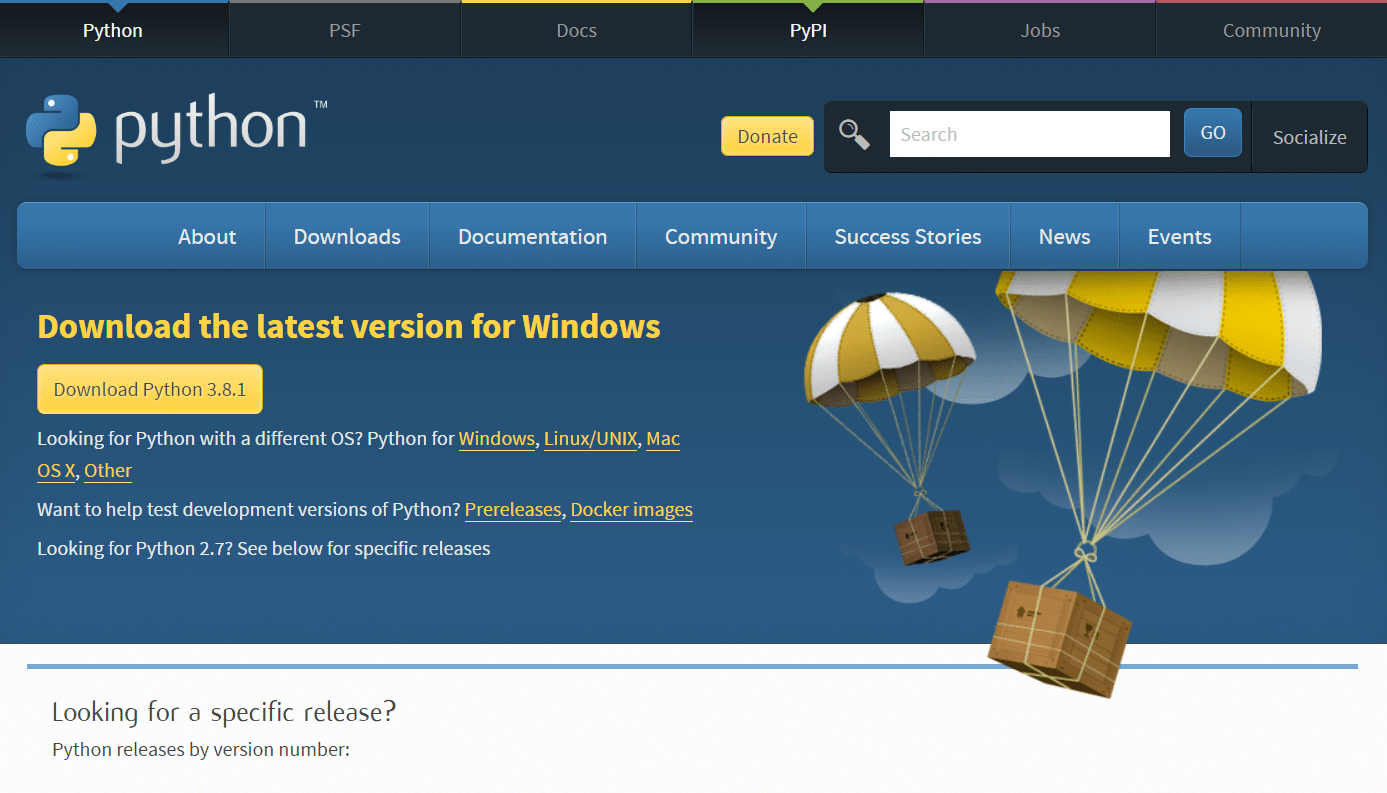
Step 2: Select ‘Downloads’ from the toolbar
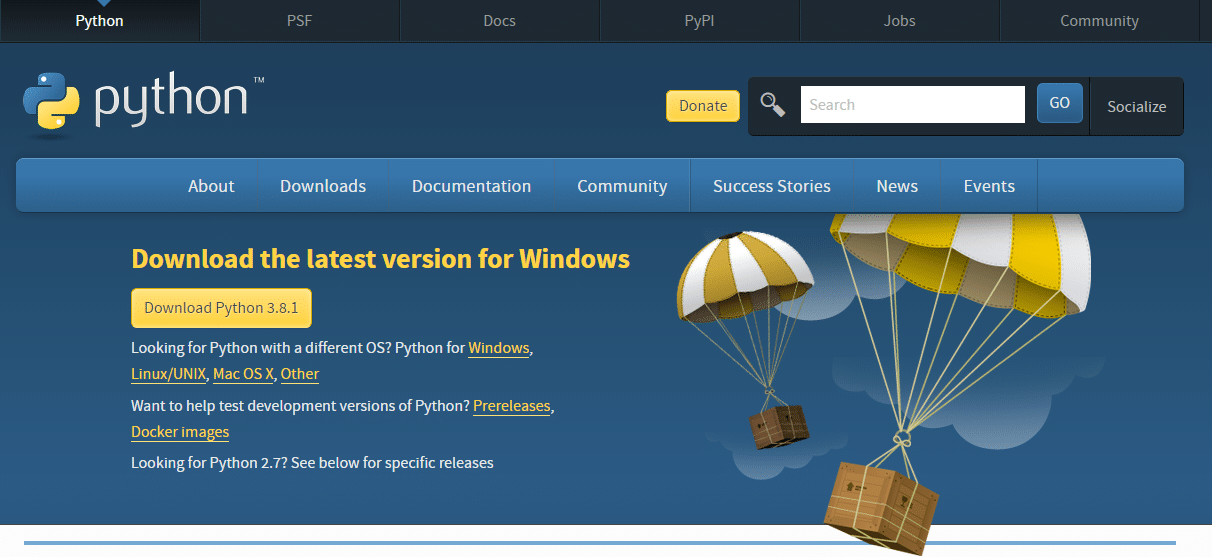
Step 3: Click on ‘Download Python 3.8.1’ or the latest version available
Step 4: Then, go to the File option. After that, a security dialog box will appear as shown below. Click on ‘Run’ to continue the installation process

Step 5: Click on ‘Install Now’
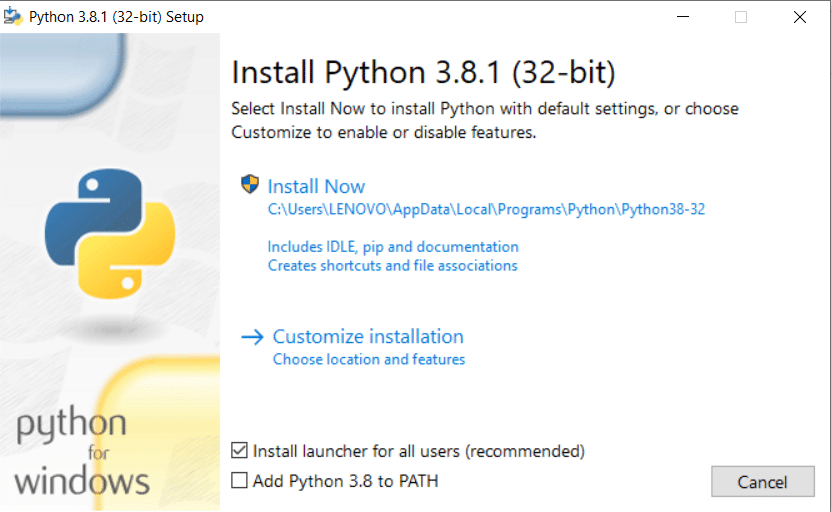
Once you do that, you can see the setup in progress as in the below screenshot:

Step 6: After the installation of Python, when you see a window with the message ‘Setup was successful’, click on the ‘Close’ button

Now, you are ready with Python 3.8.1 installed in your system.
Further, we will move on to the installation of PyCharm.